How to Import a Bank Statement
A bank statement catches what receipts missed, such as the direct debit or the subscription that renewed quietly, and this is how to export one and review it in HeyJerni.
Updated: 2026-10-05
Short answer
Export the statement as a PDF from your bank app, then share it into HeyJerni with the iOS share sheet. There is no import button inside the app, because the file has to come to it.
The import is three steps, Transfers, Charges and Categories, and nothing is written to your records until you tap Add. You can go back and forth, or leave and come back tomorrow.
Export from the bank app rather than photographing a printed statement. A scan is an image of text, and the reader needs the text itself.
Before you import, check
Thirty seconds here saves working through a list that was never going to be right.
- The file is a PDF exported by the bank, not a photo or a screenshot
- The period is the one you want, and does not overlap an import you already did
- You are importing the account you actually spend from
- You have a few minutes, though you do not need them all at once
Whether a particular expense is deductible depends on your circumstances and current ATO rules. Importing a statement is a record-keeping step, not tax advice.
Where the export is, bank by bank
In your banking app, open the account and look for Statements, Documents or eStatements, then export the period you want as a PDF. Banks move these when they redesign; this is where ANZ Plus and NAB keep them.
| Bank | Where to tap | What you get |
|---|---|---|
| ANZ Plus | Profile, then Statements. Open the one you want and use the share icon on it | A PDF for that month, shared without leaving the app |
| NAB | The account, then Statements, then Download your recent transactions. Pick a date range, tap Generate your PDF, then Share | A PDF of the range you chose, going back up to two years in the app |
| Any other bank | On the account, under Statements, Documents or eStatements | Whatever the bank produces. A text PDF goes through the general reader |
Longer periods are sometimes only available through internet banking rather than the app. A statement downloaded on a computer works too, as long as it reaches the phone as a file.
From the share sheet to Add
Sharing the file opens the import. Three steps follow, Transfers, Charges and Categories, each with a button that carries you to the next.
1 / 5
Share it into HeyJerni
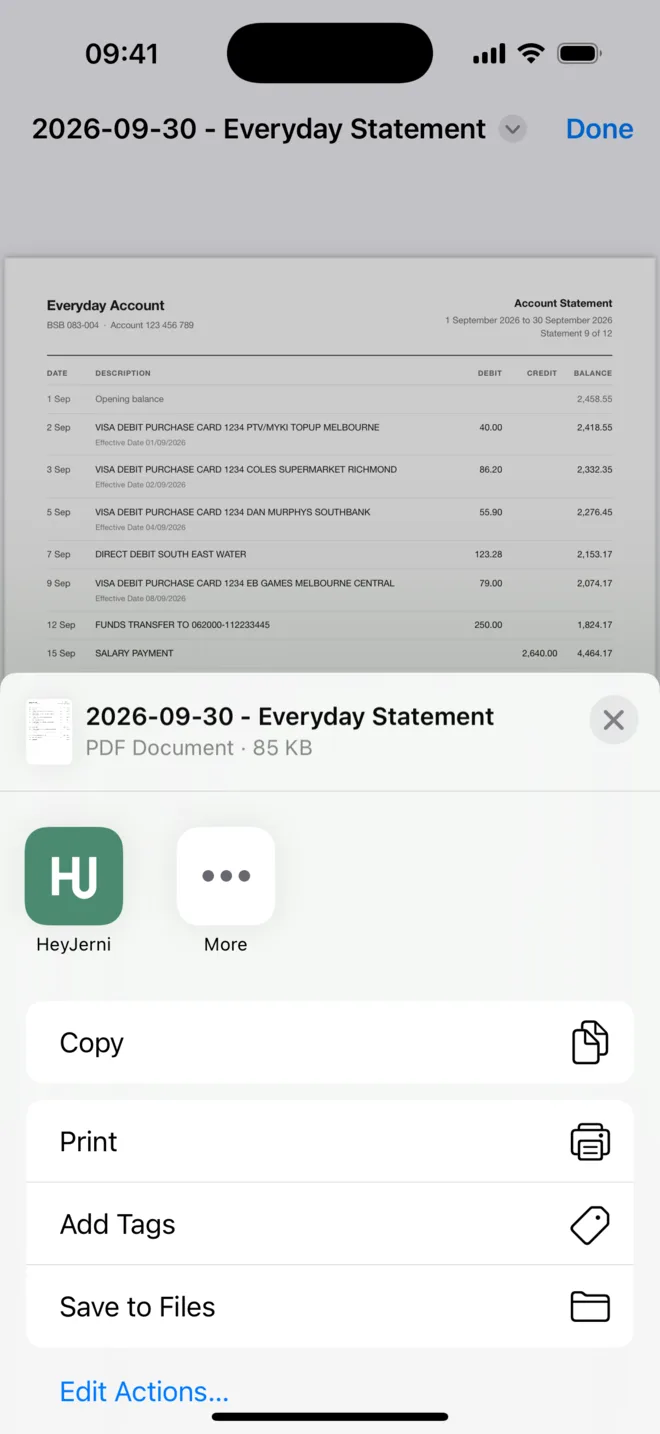
On the PDF, tap Share. HeyJerni is in the row of app icons, the strip above Copy and Print, not in the list of actions under it. On a fresh install, tap More at the end of that row and turn HeyJerni on once. The statement is read on the phone.
2 / 5
Transfers: keep your own money out of spending
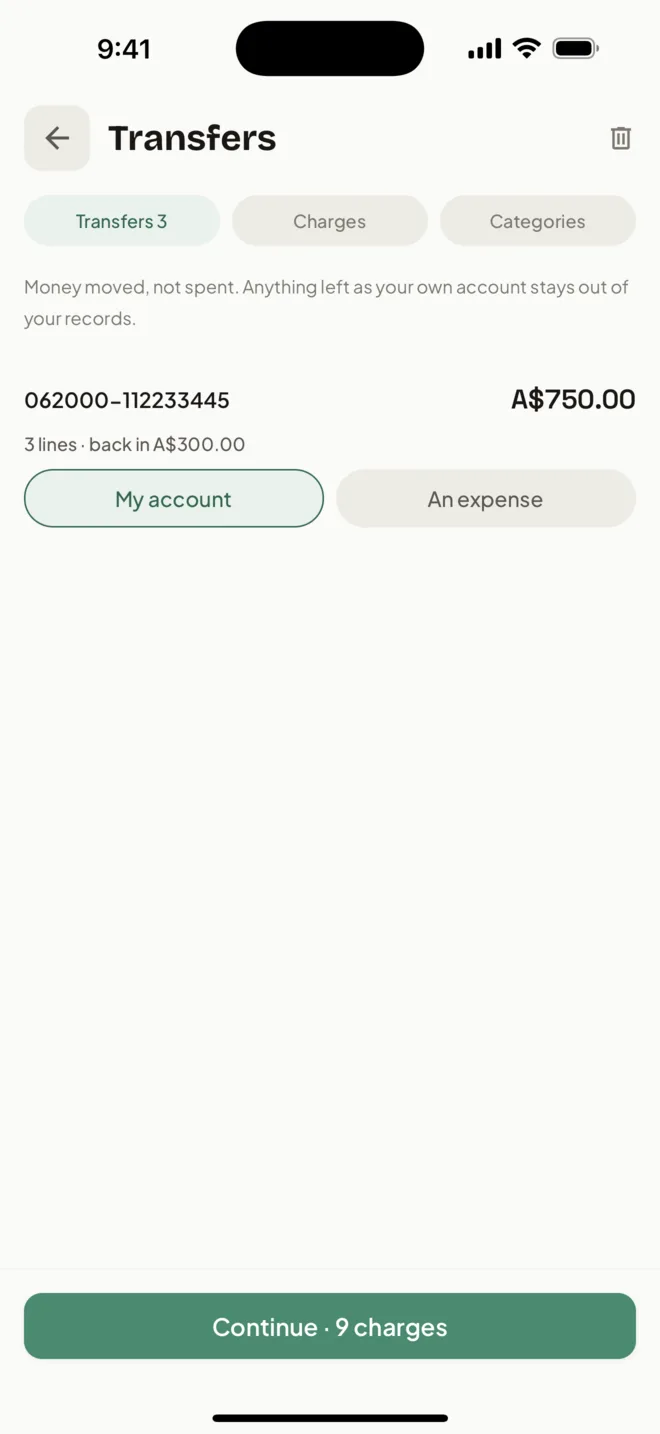
On a statement, money moved between your own accounts looks exactly like spending. This step groups those lines by the account on the other side and asks one question about each: My account, or an expense? My account keeps them out of your records, and the answer is remembered next time.
3 / 5
Charges: tick what never became a record
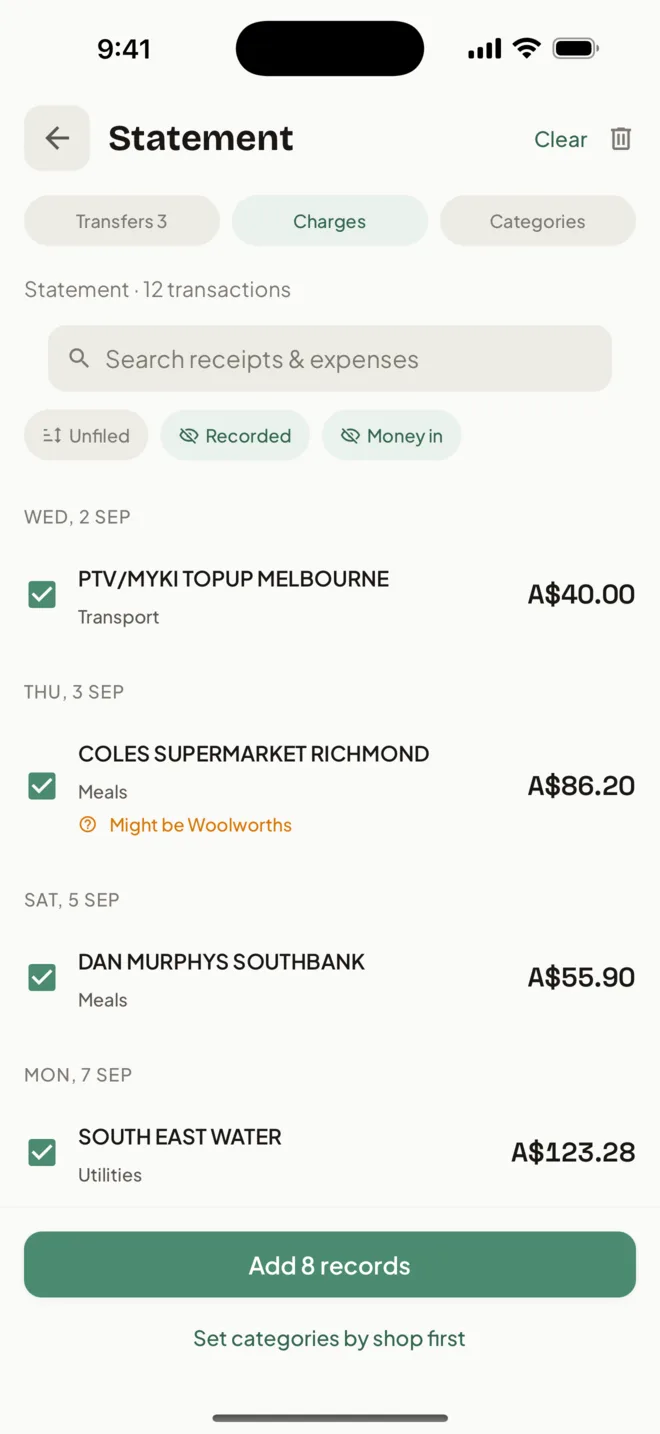
This is the list you actually work. Charges that match a record you already have are flagged, so a receipt you scanned is not added twice. Filters narrow the list, and sorting by Unfiled brings what still needs a decision to the top.
4 / 5
Categories: set them by merchant
Most lines arrive with a category already worked out on the phone from the merchant name. Set the rest by merchant, and every charge from that merchant takes it at once.
5 / 5
Tap Add
Only the ticked charges become records, each with its category. Anything you left alone is not imported. Until then, the stepper at the top takes you back to any step.
Which statements can be read
Two banks have readers written against their exact layout. Everything else goes through a general reader, which handles most text PDFs and will tell you when it is unsure.
ANZ Plus
Read line by line, including the continuation line that carries the real transaction date, which is why an ANZ Plus charge lands on the day you made it rather than the day it settled.
NAB
Read line by line. NAB prints a running balance once a day rather than once a line, and the balance check accounts for that instead of calling a good statement broken.
Other banks
A general reader takes the columns as printed. It works on most text-based PDF statements. Lines it cannot read are listed rather than dropped, so you can see exactly what it missed.
A photographed statement
Will not work, and says so rather than importing half of it. A photo or a scan holds no text to read. Export the file from the bank app instead.
The balance check, and why it is worth reading
A statement prints its own running balance. Reading the charges and following that balance from one checkpoint to the next proves something a careful parser cannot prove about itself: that no line was missed, no amount was misread, and every debit and credit went the right way.
When it does not add up, the import says so at the top of the list rather than presenting a tidy set of rows that is quietly missing some. A partial list you know is partial is far more useful than a complete-looking one that is not.
The same principle covers lines the reader could not parse at all. They are counted, and you can open the list and read the raw text of each one, which is usually enough to type in the couple it could not handle.
Leaving part way through
An import waits. Leave the screen, close the app, come back tomorrow, and a card on your Records screen takes you back to the same review with your ticks and categories still there.
It is gone only when you discard it, which also deletes the statement file from the phone. Records you already added stay where they are.
Frequently asked questions
Can I import a CSV instead?
What happens if I import the same statement twice?
Do I have to give everything a category?
Is the statement file kept on my phone?
Read next
- Expense tracker without bank linkingWhy the file comes to the app rather than the app going to the bank.
- How to organise receipts for tax timeWhere a statement sweep fits in the wider routine.
- How to keep digital receiptsThe subscriptions and direct debits a statement is the only trace of.
- How to separate work and personal expensesGiving the imported charges a purpose, not only a category.
Australian references
Last reviewed: September 2026. Tax information on this page is based on publicly available Australian Taxation Office guidance. HeyJerni is a record-keeping tool and does not provide tax or financial advice.

Read the statement once, then forget it
HeyJerni reads the PDF on your phone, holds transfers out, flags what you already recorded, and files most of the rest before you look at it.
