Log every tap-to-pay purchase automatically
Auto-log is one Shortcuts automation, set up once, that records each contactless Apple Pay tap in a shop as an expense, and this walks through it screen by screen.
Updated: 2026-10-05
Short answer
In HeyJerni, open Settings > Auto-log, turn on notifications and add the ready-made shortcut, then create one Wallet automation in the Shortcuts app. It takes about two minutes.
From then on, each contactless Apple Pay tap in a shop, on the cards you chose, becomes an expense with the merchant, amount and date, and a notification tells you it landed. It all runs on the iPhone, with no bank login.
It covers contactless taps in shops only. Online and in-app Apple Pay, and subscriptions billed straight to the card, do not trigger the automation, so those still come in by receipt scan, statement import or a subscription in the app.
Before you start
- An iPhone on iOS 26.7 or later, where the Wallet trigger this relies on fires reliably
- Apple's Shortcuts app, which comes with iOS; reinstall it from the App Store if you deleted it
- HeyJerni 2.4 or later
- At least one card in Apple Wallet
In HeyJerni: three steps
Open Settings > Auto-log, or tap Set up Apple Pay auto-log on the Getting started card on Records. The button at the bottom of the screen always names the next step.
Turn on notifications
Tap Turn on notifications and allow them. The notification is how you see each expense the moment it lands.
Add the shortcut
Tap Add the shortcut. The Shortcuts app opens with the HeyJerni Auto-Log shortcut, already wired to pass the merchant and amount; confirm Add Shortcut. There is nothing to edit inside it.
Set up the automation
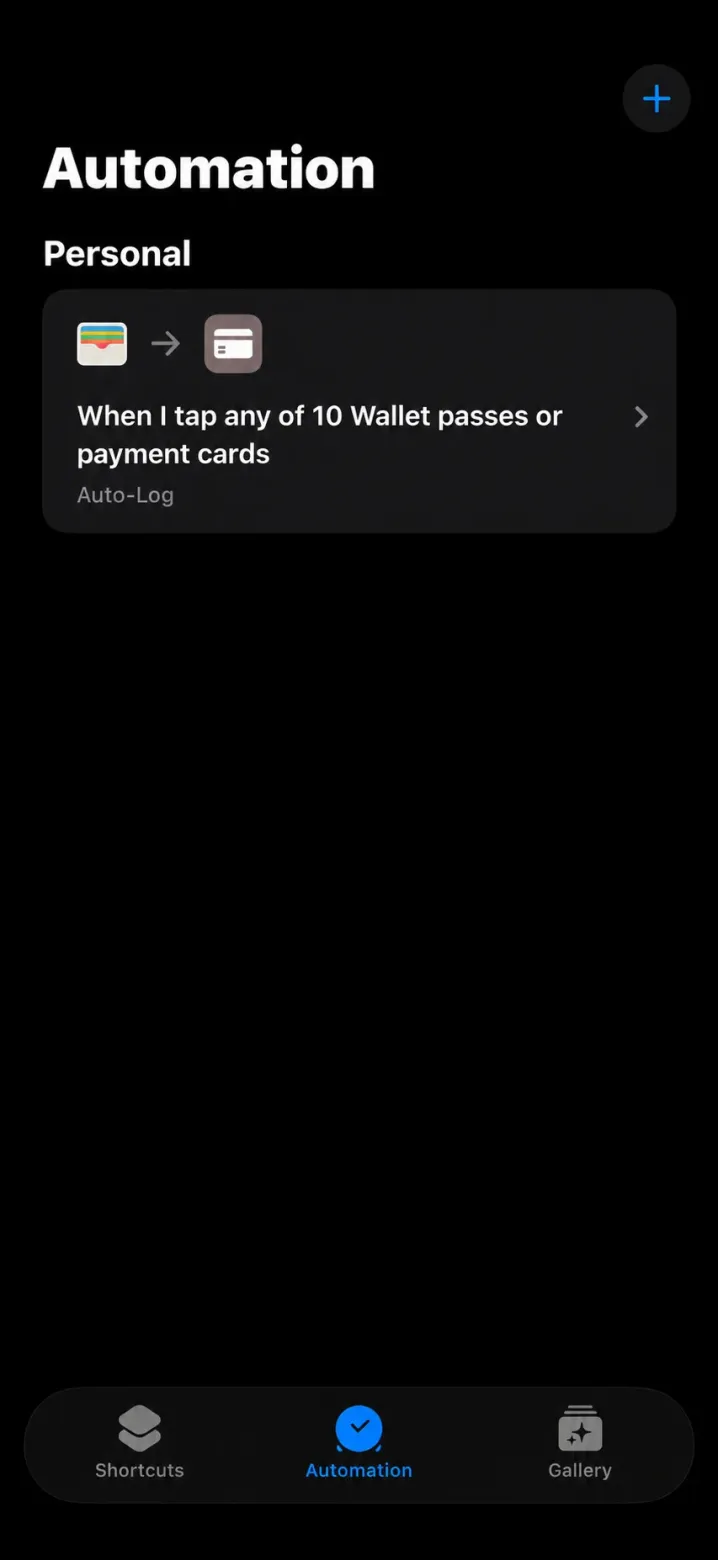
Tap Set up the automation. HeyJerni shows the five Shortcuts screens below, with a button that opens Shortcuts on its Automation tab.
In Shortcuts: five screens
This is the step people forget. The shortcut on its own does nothing until a Wallet automation runs it.
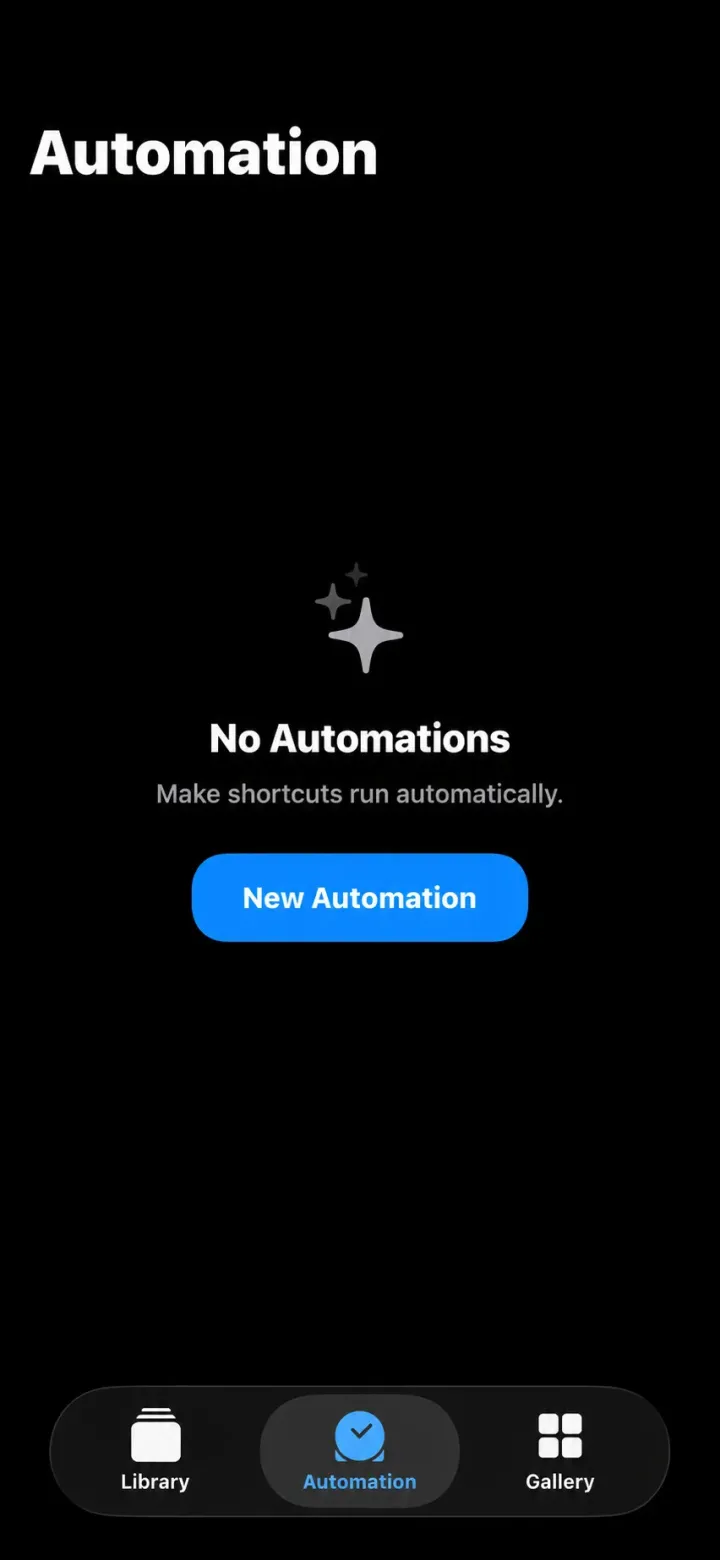
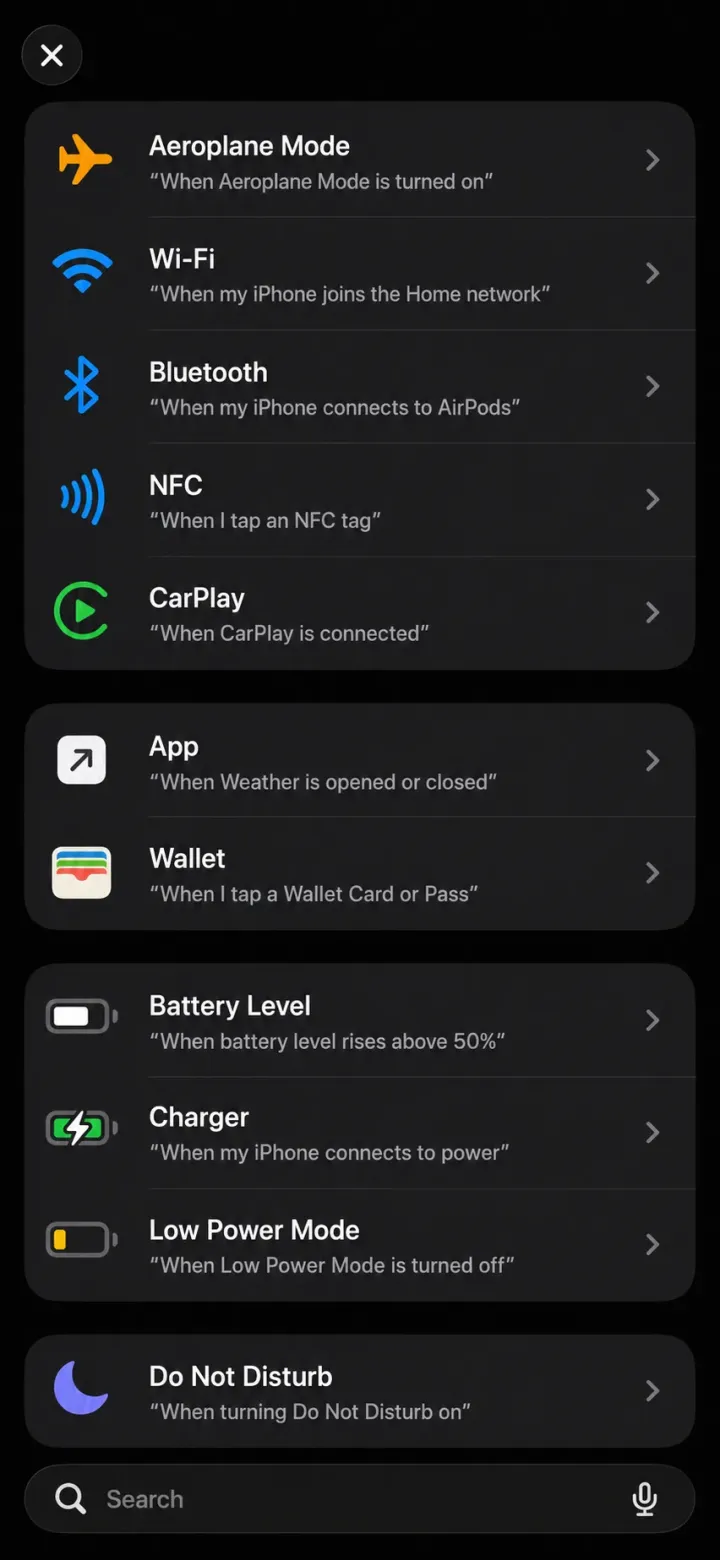
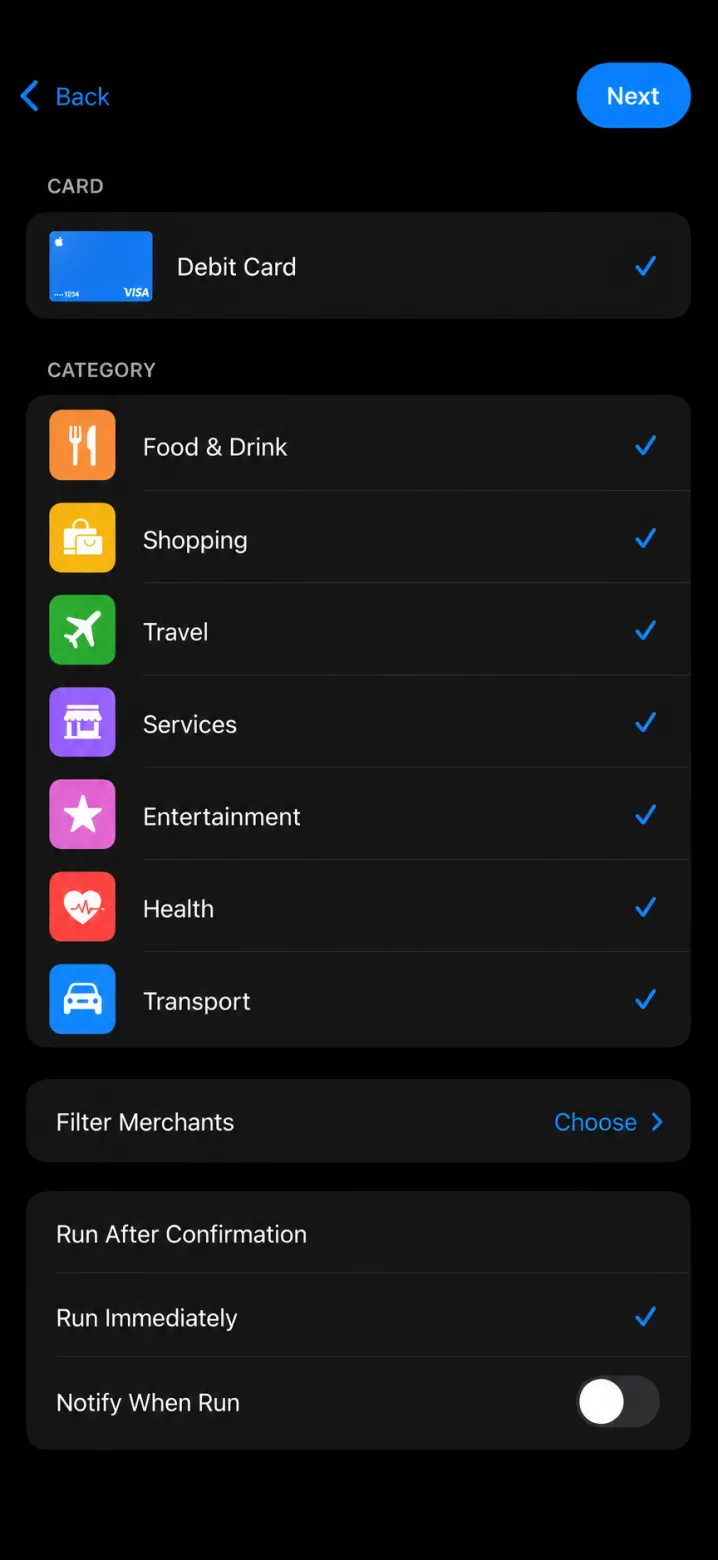
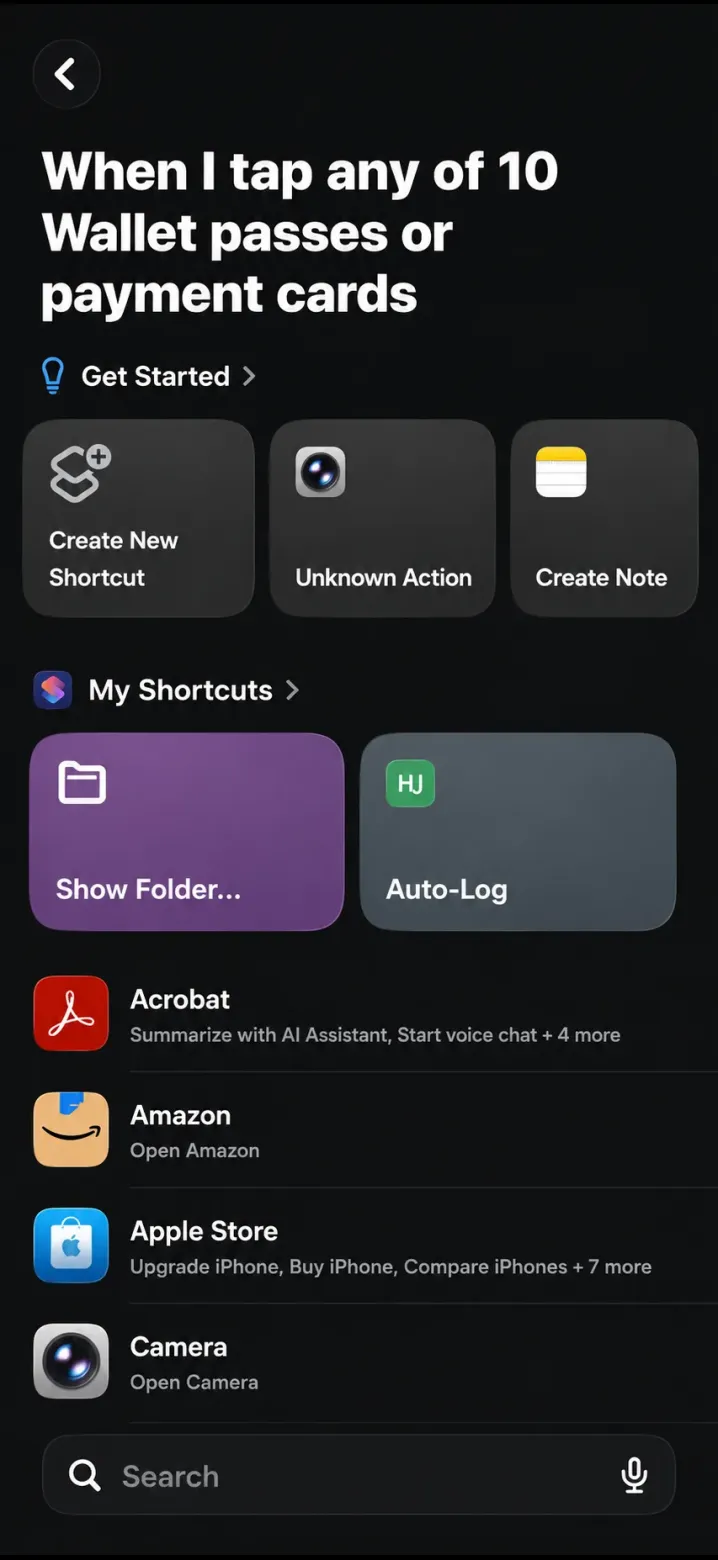
1 / 5
Tap New Automation
On the Automation tab, tap New Automation.
2 / 5
Choose Wallet
From the list of triggers, choose Wallet, the one that runs when you tap a card.
3 / 5
Pick your cards, choose Run Immediately
Select the cards you pay with, choose Run Immediately rather than Run After Confirmation, then tap Next. Run Immediately matters. With Run After Confirmation, iOS asks you to confirm every payment before anything is logged.
4 / 5
Choose Auto-Log
Under My Shortcuts, pick Auto-Log.
5 / 5
Tap to pay once in a shop
The automation now appears under Personal. Make one contactless Apple Pay payment in a shop: within seconds a notification arrives, the expense sits at the top of Records, and Settings > Auto-log reads Set up.
After setup: each logged expense
- Transit top-ups and fuel are filed under Transport by themselves. For anything else, choose a category once and HeyJerni remembers the merchant next time.
- Set the purpose (work, personal or mixed) and a work-use percentage for anything you plan to claim.
- Add the receipt photo to claimed expenses. Record check lists what is still missing before you lodge.
Troubleshooting
Nothing was logged after I paid
I paid online or in an app and nothing was logged
The expense is there but I got no notification
I cannot find the Wallet trigger
I paid with a physical card or cash
I want to start over
Frequently asked questions
Does HeyJerni see my card number?
Is an auto-logged transaction enough evidence for a tax deduction?
Can I use it on an iPad or an older iPhone?
Read next
- Apple Pay expense trackerWhat auto-log does, and where it fits.
- Why auto-log matters at tax timeWhat automatic capture is worth across a financial year.
- How to import a bank statementCatches the online and in-app purchases auto-log does not.
- How long to keep receipts for tax in AustraliaThe ATO record-keeping rules in plain English.

Set it up once, then just pay
Free on the App Store. Receipt scanning, on-device AI and Apple Pay auto-log, with no account and no bank linking.
